AccredTix Structure
Before we jump into creating your first event, it’s important to understand the basic structure of the AccredTix platform and how the various components work together.
Workspace
Let’s start with your Workspace. This is the main container for all your events and settings.
The workspace is where you can manage the setup and configuration of your events, your workspace settings and users across all of your events and is ideally named after your company, venue or organisation. Within the workspace, you can create one or more Events, which are the individual events you are managing.
We suggest against using the name of your event as the workspace name unless you only want to use AccredTix for a single event brand. This is because it will make it difficult to manage multiple events and settings from a single workspace.
Your workspace will have a domain name associated with it, which is used to access the workspace and its events, you’ll be asked to choose a domain name when you create your workspace.
For example, if your company is named Awesome Events, we suggest you choose awesomeevents.accredtix.com
Events
Inside your workspace, you will be able to create events, which are the individual events you are managing within your workspace. Each event will have it’s own plan, either Free, Pro or Enterprise, depending on your needs.
Each event can be configured with its own branding, copy, workflows, modules and permission structure, so users feel like they are interacting with an event-approved platform rather than a generic third-party system.
You are able to duplicate events to create a new event with the same configuration, or to create a new event for a different date, location or name.
For example, if you want to create a new event for a different date, you can duplicate the event and change the date.
You are also able to delete an event if you no longer need it, or Archive an event if you want to keep it for future reference but restrict access.
For example, if you use AccredTix for Cool Event 2025, and want to retain the information and configuration for the event in 2026, you can archive the event that has already taken place until the next year and then duplicate it for the new event.
You can add custom logos and email sender information to the event to ensure all emails come from the event, not your workspace name. The only use of your workspace name will be in the URL’s that are sent when you send out links.
For example, if Awesome Events set up Cool Event 2026, then the url would read https://awesomeevents.accredtix.com/cool-event-2026
Groups
The next level in the structure is the Groups.
Groups are used to manage various bulk settings across suppliers/teams/artists in your event.
For example, you can create a group for all your suppliers, and then set the default email copy type for the group, and this will be used for all teams in the group.
When setting up your event, AccredTix will automatically suggest some common groups such as Production Suppliers, Traders, Artists, Venue Suppliers, Guests etc.
You can create as many groups as you require, but we suggest keeping it to no more than 5/10 groups per event.
Teams
Teams are the individual suppliers/artists/vendors/contractors etc that are attending your event and require and allocation.
We suggest setting up your teams once you have configured all of the settings in your modules, so when they are added they are ready to go.
Each Team can have a set of modules enabled or disabled, and this will determine what information is required from them when they are added to the event.
For example, if you have a Brandons Brilliant Burgers, you can enable the Accreditation module and disable the Guest List module, so when their Team Contact(s) are added they will only be asked to provide accreditation information.
Team Contacts
Team Contacts are the individual point of contact(s) that are associated with a team.
Team Contacts will be given access to the system to manage their team and all of their team’s people. You should not add all of the staff/crew/artists to the team contacts, as this will give them access to the system to manage all of the teams and people in that team for the event.
You can add as many team contacts as you require, but we suggest keeping it to one or two.
People
People make up the individual people that are associated with a team.
This could be a crew member working for a supplier, an artist, a vendor, a contractor etc.
It could also be a guest added to the guest list module.
Summary
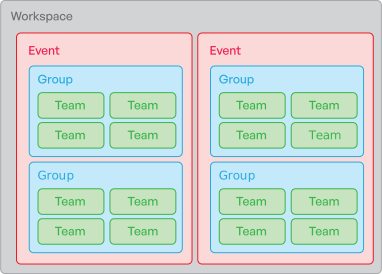
At a very top level, the structure of the AccredTix platform is as follows:
- Workspace - ie Awesome Events
- Event - ie Cool Event 2026
- Group - ie Traders
- Team - ie Brandons Brilliant Burgers
- Team Contacts - ie Brandon Smith - CEO of Brandons Brilliant Burgers
- People - ie John Doe (Burger Cook) and Jane Smith (Cashier)
The below diagram shows this visually:
We’re almost ready to start creating your first event. Before we do, we have an important note on Martyn’s Law for our users in the UK. If you’re not based in the UK, you can skip ahead to Getting Started.